
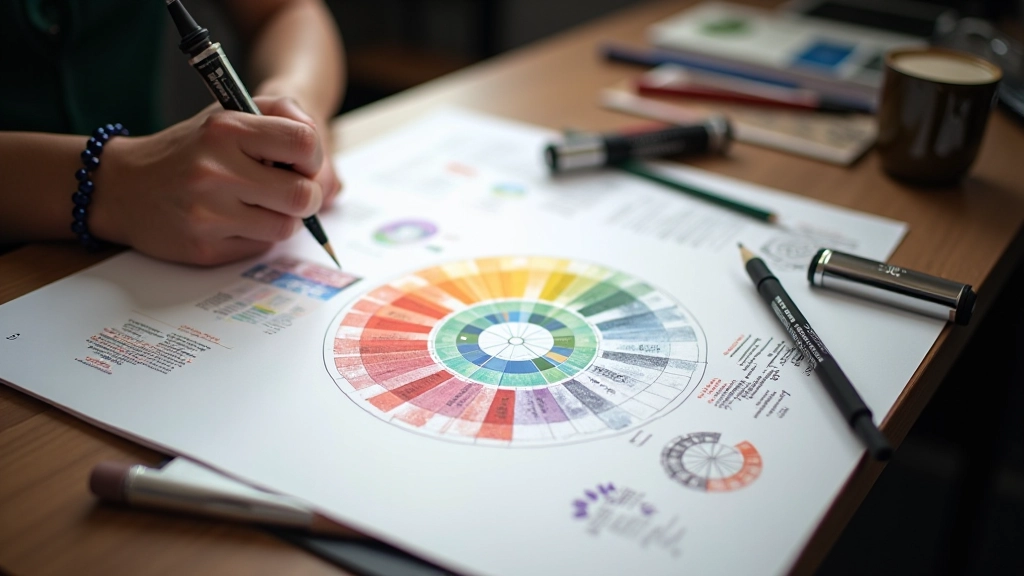
Design Composition: Creating Visual Balance and Movement
Composition isn’t just about placing things on a canvas. We explore the rule of thirds, leading lines, and how to guide a viewer’s eye through your work.
Read articleLearn how vector graphics work differently from raster images. We’ll cover the essential tools you need and why they matter for creating scalable artwork.

Vector graphics are everywhere. Your favorite app icons? Vectors. That logo you see on billboards? Also vectors. But here’s the thing — they’re fundamentally different from the photos on your phone, and understanding that difference changes how you approach digital design.
Raster images (like photographs) are made of tiny pixels arranged in a grid. Zoom in far enough and you’ll see the individual colored squares. Vectors work completely differently. They’re built using mathematical formulas that describe shapes, lines, and curves. This means you can scale a vector graphic from the size of a business card to the size of a billboard, and it stays perfectly sharp. No pixelation. No quality loss. That’s the magic.
Raster: Made of pixels, fixed resolution, gets blurry when enlarged
Vector: Made of paths and shapes, infinitely scalable, always sharp
At the heart of every vector graphic are paths. A path is basically a line (straight or curved) that’s controlled by anchor points. Think of anchor points as handles you can grab and drag to shape the line exactly how you want it.
When you click on a canvas in a vector editor, you’re creating anchor points. Connect two points and you’ve got a straight line. Add curves to those lines using control handles (those little arms extending from the anchor points), and suddenly you’re drawing smooth, flowing shapes. Most people find this takes a bit of practice, but it clicks pretty quickly once you start playing with it.
Click to place your first anchor point
Click to place a second point — a line appears between them
Drag the control handles to create curves
Keep adding points until your shape is complete
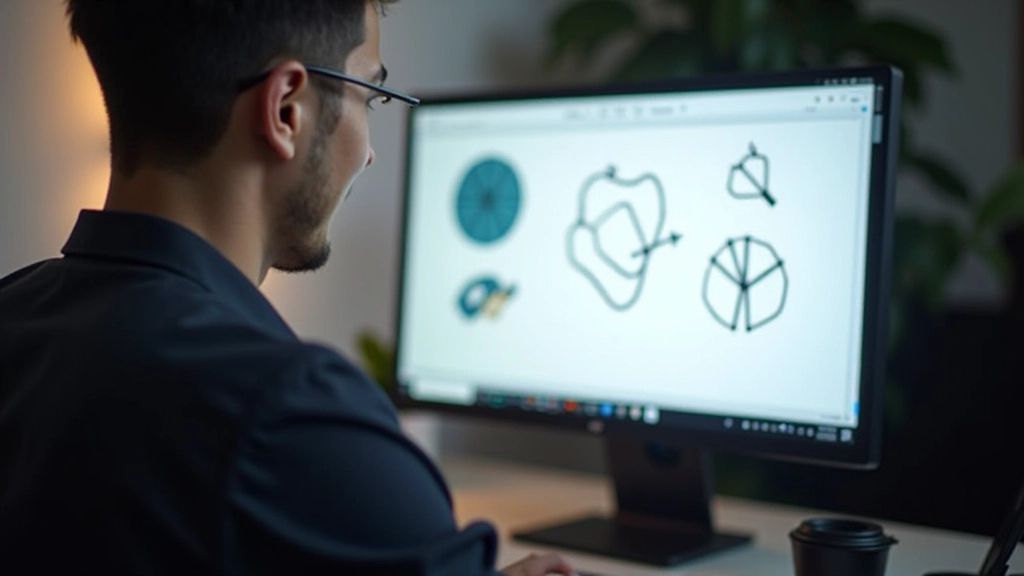

You don’t always need to draw paths from scratch. Most vector software comes with shape tools that let you quickly create rectangles, circles, triangles, and polygons. These are incredibly useful for building more complex artwork.
The real power comes from combining and modifying these basic shapes. You can resize them, rotate them, change their colors, and adjust their strokes (the outline). In many programs, you can also use something called Boolean operations — fancy term for combining shapes in specific ways. Union two circles and they become one shape. Subtract one shape from another and you’ve cut a hole in it. This is how professional designers build complex illustrations from simple elements.
You don’t need to spend hundreds of dollars to start learning vector art. There are solid options at every price point, from completely free to premium software.
The industry standard. Used by most professional designers in Malaysia and globally. Subscription-based, but you get constant updates and cloud features. Best if you’re serious about a design career.
One-time purchase instead of monthly subscription. Powerful tools that rival Illustrator. Great middle ground between free software and Adobe’s pricing.
Completely free and open-source. Has a steeper learning curve than paid options, but it’s genuinely capable. Perfect for learning without financial commitment.
Web-based design tool. Excellent for collaborative work and creating UI designs. Free tier available. Growing in popularity among Malaysia’s design community.
Long-standing vector design software. Popular for print design and signage. Subscription model. Strong community of users in Southeast Asia.
Free online editor with desktop apps available. Intuitive interface, good for beginners. Works well for simple logos and icon design.
Reading about vectors is useful, but actually drawing them is how you learn. Here’s what we recommend starting with:
Open your chosen software and create 10 different shapes using the shape tools. Mix rectangles, circles, and polygons. Try changing their fill colors and stroke widths. Get comfortable with how these tools feel.
Draw two overlapping circles. Use Boolean operations (union, subtract, intersect) to create different results. This teaches you how shapes can work together.
Start simple. Draw a wavy line. Then try drawing a basic leaf shape using just anchor points and curves. Don’t aim for perfection — it’s about understanding how the tool works.
Combine what you’ve learned. Design a simple icon — maybe a house, a heart, or a star. Use shapes and paths. Keep it to 2-3 colors. This is a real, practical skill.

Don’t try to learn everything at once. Vector art is a skill that develops gradually. Focus on paths and shapes first, then expand into more advanced techniques.
30 minutes of focused learning beats 3 hours of distracted browsing. Follow along with tutorials step-by-step, pausing to practice each technique.
Look at vector illustrations you admire. Try to figure out how they were made. What shapes were combined? What colors were used? This trains your eye for good design.
Malaysia has a growing design community online and in cities like Kuala Lumpur and Johor Bahru. Sharing your work and getting feedback accelerates your learning dramatically.
Don’t just do exercises. Design something you’ll actually use — a logo for a local business, a poster for an event, icons for an app concept. Real projects force you to solve actual problems.
This guide provides foundational information about vector art and the tools available for learning. Software features and capabilities change regularly as vendors release updates. Pricing and availability of tools mentioned may vary by region and subscription model. We recommend checking official websites and current reviews before purchasing or downloading software. Everyone’s learning journey is different — what works for one person might not work for another, so don’t hesitate to experiment with multiple tools to find what suits your workflow best.
Vector art might seem intimidating at first, but it’s really just about understanding a few core concepts — paths, anchor points, and shapes — and then practicing until your hands develop muscle memory. Start with the basics. Don’t jump straight into creating complex illustrations. Give yourself 4-6 weeks of regular practice (even just 30 minutes a few times a week) and you’ll be surprised at what you can create.
The tools don’t matter as much as you might think. Whether you use the free option or the premium software, you’re learning the same fundamental skills. Pick one, stick with it for a few months, and build from there. Your future self will thank you for starting today.
Want to explore more design fundamentals?
Learn about design composition and visual balance